Quick Access to Options
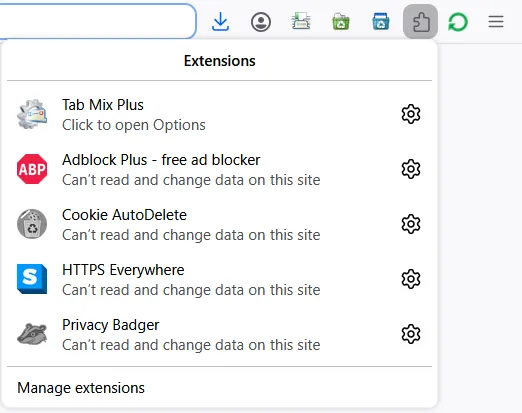
Tab Mix Plus provides a streamlined way to open your preference dialog directly from the browser interface. This ensures that your settings are always just two clicks away, regardless of which page you are currently viewing.
Using the Extensions Widget
Section titled “Using the Extensions Widget”The most convenient way to access Tab Mix Plus options in modern Firefox and its forks (such as Zen, Floorp, or LibreWolf) is through the Extensions panel.
How to open Options:
Section titled “How to open Options:”- Click the Extensions icon (puzzle piece) in the top-right corner of your browser toolbar.
- Locate Tab Mix Plus in the list.
- Click the Gear icon (⚙) or the text “Click to open Options”.
This will immediately launch the main Tab Mix Plus preferences window.
Why use the Widget?
Section titled “Why use the Widget?”- Speed: Skip the multiple steps of opening
about:addonsand searching for the extension. - Accessibility: The widget works even on restricted internal browser pages (like
about:configorabout:addons) where extension popups are usually blocked. - Context Independent: It provides a reliable “Home Base” for your settings that looks and behaves the same across different browser forks.
Alternative Methods
Section titled “Alternative Methods”While the widget is the recommended method, you can still access options via:
- Add-ons Manager: Type
about:addonsin your address bar, find Tab Mix Plus, and click the three dots icon to find “Options.” - Legacy Menus: If you have the traditional Menu Bar enabled, you can find Tab Mix Plus under the
Toolsmenu.
For instructions on how to backup or sync these settings once the dialog is open, see Restore, Import & Export