
Installation
Since Firefox removed the internal component that loads legacy extensions, installing Tab Mix Plus (or any other legacy extension) needs third-party helper scripts. The short version of why is in Why we need it.
Install Firefox Scripts
Section titled “Install Firefox Scripts”Please follow the instructions below step-by-step to install the scripts. The extension will not work if you install any files in the wrong location.
Installer and updater
Section titled “Installer and updater”firefox-scripts installs and keeps the helper scripts up to date. Once you approve the install,
the small native installer automatically extracts both packages (fx-folder.zip and utils.zip)
and copies each file to its right location in the browser. From then on, the in-browser updater keeps
them current automatically as new versions are released. Background and rationale live on the
Installer & auto-updater page; here is how to use them.
The installer
Section titled “The installer”Download the installer for your OS from the
firefox-scripts releases page:
installer_win.exe (Windows), installer_linux / installer_linux_aarch64 (Linux), or
installer_mac (macOS).
Run the downloaded installer. It connects to a running Firefox-family browser (Firefox, Waterfox, Zen Browser, LibreWolf, or Floorp), opens an install screen in a browser tab, and lets you pick which browser to set up.
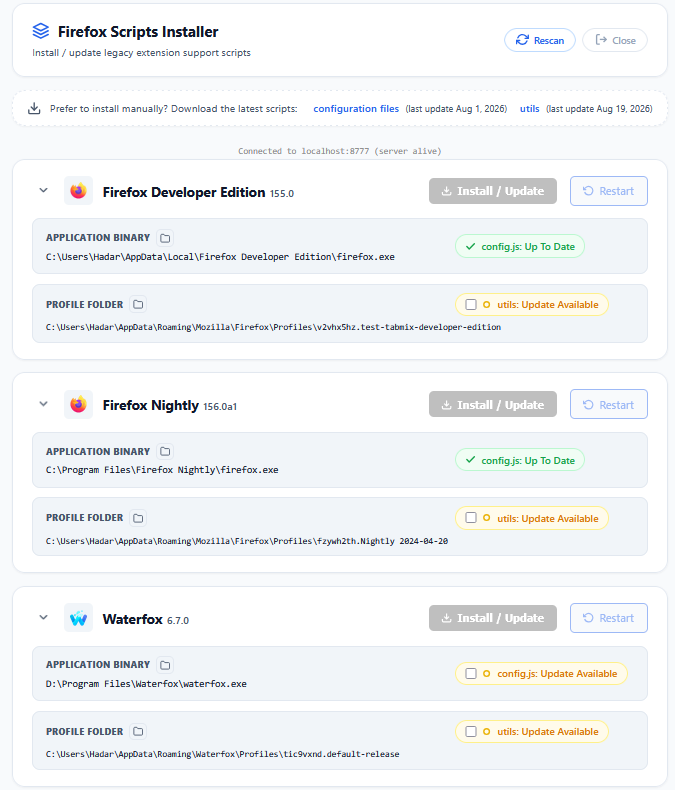
Choose the components to install:
- Configuration files (
config.js,config-prefs.js): copied to the browser's installation directory. - Utils (the chrome scripts): copied to your profile's
chrome/utils/directory.
Click Install, wait for completion, then Restart the browser when prompted.
The installer automates the manual steps further down this page. It fetches fx-folder.zip and utils.zip from the latest release itself and copies each package to its place: the configuration files to the browser installation directory, and the utils to chrome/utils/ in every profile you set up. Installing by hand below does the same thing file by file.
The installer is a one-shot setup tool: it installs only the components you pick and does not leave behind any other files, background processes, or scheduled tasks. After the install completes you can delete the downloaded executable. Nothing else was installed besides the configuration files and scripts you chose.
The updater
Section titled “The updater”Once installed, the scripts keep themselves current without you re-running the installer:
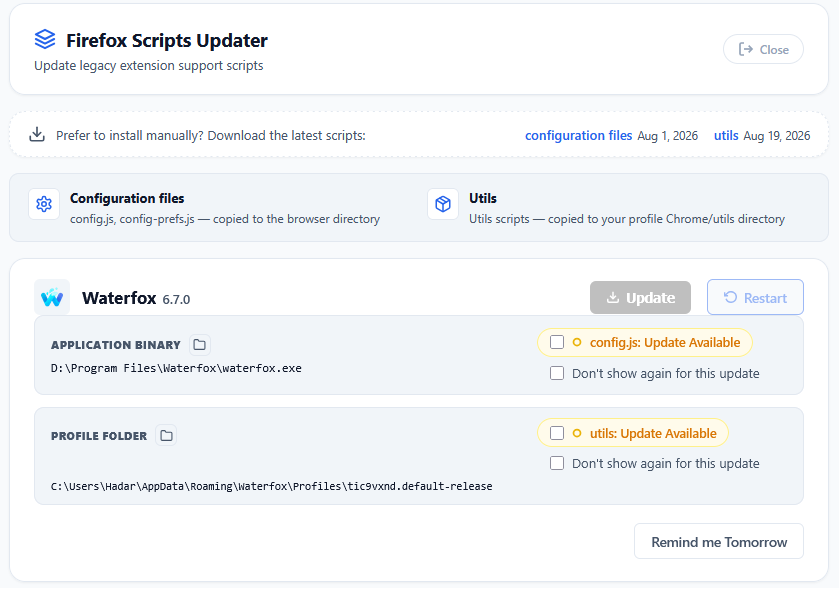
- Daily check. The updater (a small privileged script that lives inside the browser) checks once a day whether a newer version of the scripts or configuration files has been published.
- Notification tab. When an update is available, the updater opens a tab showing what would change. You can install the update right there, skip it for the day, or permanently ignore a specific update.
- Your choices. Install the update, Remind me Tomorrow, or Don't show again for this update (per package). Each choice and the preferences behind it are explained in Installer and auto-updater.
- In-tab install. Applying an update downloads the new packages and copies them into place inside the browser. No installer download needed. Updating the configuration files, which live in admin-protected folders (e.g. Program Files on Windows), triggers a single elevation prompt via a small helper that ships with the update.
- Manual update. You can always open the updater manually from the browser menu, or download
the
utils.zip/fx-folder.zippackages directly from the update tab.
Prefer to install by hand? Follow the download and installation steps below.
Download latest scripts
Section titled “Download latest scripts”It is recommended to check periodically, or at least with every Firefox update, if new Firefox Scripts are available.
You should download the latest version of the scripts from the links below.
- Download configuration files
- Download utils
utils.zip and fx-folder.zip are published with every build on the
firefox-scripts repository. The links above always
point at the latest build.
Install config script
Section titled “Install config script”Open about:support and locate the path to your Application Binary and Profile Folder

Copy configuration files to
your Firefox root directory.
fx-folder.zip files are packed with paths used by Firefox
for Windows, Linux and macOS users should follow the instructions below. the zip file
contain the following files:
config.js- This file should be copied to the directory that containsfirefox.exe, referred to asPATH TO FIREFOX.EXE.config-prefs.js- This file should be copied to[PATH TO FIREFOX.EXE]/defaults/pref.
Note:
The default path to Firefox on Windows is typically:
64-bit Firefox: C:\\Program Files\\Mozilla Firefox\\
32-bit Firefox: C:\\Program Files (x86)\\Mozilla Firefox\\
Verify the path:
Check the actual path to your Firefox root directory. If it
differs from the default, replace the path accordingly in the following instructions.
Copy the configuration files extracted from fx-folder.zip:
- copy the file
config.jsto[PATH TO FIREFOX.EXE]\\config.js. - copy the file
config-prefs.jsto[PATH TO FIREFOX.EXE]\\defaults\\pref\\config-prefs.js
Note:
The default path to Firefox on Linux is typically /usr/lib/firefox/.
Verify the path:
Check the actual path to your Firefox root directory. If it
differs from /usr/lib/firefox/, replace the path accordingly in the following instructions.
Copy the configuration files extracted from fx-folder.zip:
- copy
config.jsto/usr/lib/firefox/config.js - copy
config-prefs.jsto/usr/lib/firefox/browser/defaults/preferences/config-prefs.js
Compatibility Note:
Firefox snap for Linux versions prior to 108 are not supported.
Instructions for Firefox snap 108 or newer
Verify installation path:
If you're uncertain about the installation path of your
Firefox snap, use the command snap list firefox in your terminal to check.
Copy the configuration files extracted from fx-folder.zip:
- copy
config.jsto/etc/firefox/config.js - copy
config-prefs.jsto/etc/firefox/defaults/pref/config-prefs.js
You may have to create the sub folders /defaults/pref
Note:
The default path to Firefox on macOS is typically
Firefox.app/Contents/Resources.
Verify the path:
Check the actual path to your Firefox root directory. If it
differs from Firefox.app/Contents/Resources, replace the path accordingly in the following
instructions.
Copy the configuration files extracted from fx-folder.zip:
- copy
config.jstoFirefox.app/Contents/Resources/config.js - copy
config-prefs.jstoFirefox.app/Contents/Resources/defaults/pref/config-prefs.js
Install utils
Section titled “Install utils”Remember, the utils script needs to be installed separately in each profile where you want to
use Tab Mix Plus. This differs from the main config script, which only requires installation
once in your Firefox root directory (containing firefox.exe). The reason for this distinction is
that each profile maintains its own settings and data, and the utils script plays a vital role in
ensuring Tab Mix Plus works seamlessly within each individual profile.
-
Locate your Profile Folder as described in the previous step.
-
Create
chromefolder in your Profile Folder (if one does not exist). -
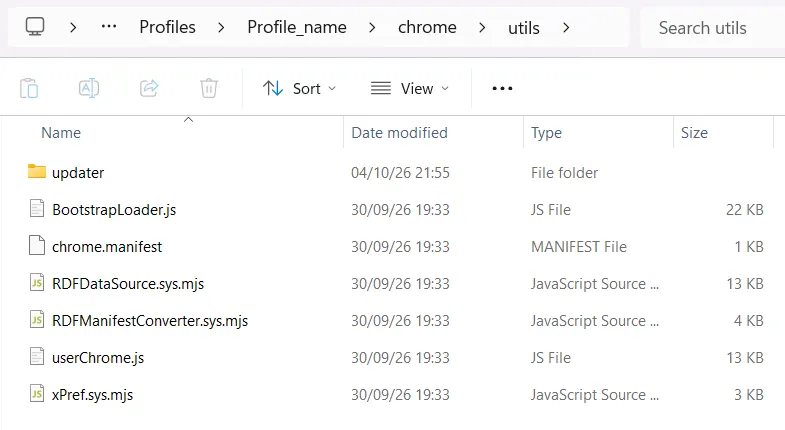
Extract utils folder inside the
chromefolder, the result should be[PROFILE_NAME]/chrome/utils, all the files should be in theutilsfolder (see the screenshot below).
Make sure all the files you see in the screenshot below are in theutilsfolder and thatutilsfolder is insidechromefolder. -
Open about:support page and click
Clear startup cache…to force Firefox to load the installed scripts on the next startup.
Removing the scripts
Section titled “Removing the scripts”- Remove
config.jsanddefaults/pref/config-prefs.jsfrom the Firefox root directory. - Remove
chrome/utilsfrom each profile (your own.uc.jsscripts anduserChrome.cssinchrome/stay untouched). - Restart the browser.
The updater goes away with the utils, so nothing will try to re-install anything. If you still have
config.js and config-prefs.js in the browser root after this, Firefox will still try to run
AutoConfig on the next start. Remove those too, or it will log that config.js is missing.
Browser compatibility
Section titled “Browser compatibility”These scripts are validated on every release in CI against the browsers below. Anything not listed here may work, but is not covered by the release gates.
| Browser | Notes |
|---|---|
| Firefox (stable, ESR, Developer Edition, Nightly) | Fully supported. Nightly is the leading edge (see the current Nightly version below). |
| Waterfox | Ships its own Bootstrap Loader, so ours skips loading it (loading both would double-register and break legacy add-ons). userChrome.js and the updater still work. |
| Zen Browser | No special handling needed. |
| LibreWolf | No special handling needed. |
| Floorp | No special handling needed. |
A browser must be running when the installer runs. Detection uses process scanning and lock-file inspection.
In three steps
Section titled “In three steps”- Download the installer for your OS from the latest release.
- Run it and pick the browsers and components to install in the tab it opens.
- Restart the browser. From then on, updates arrive on their own.